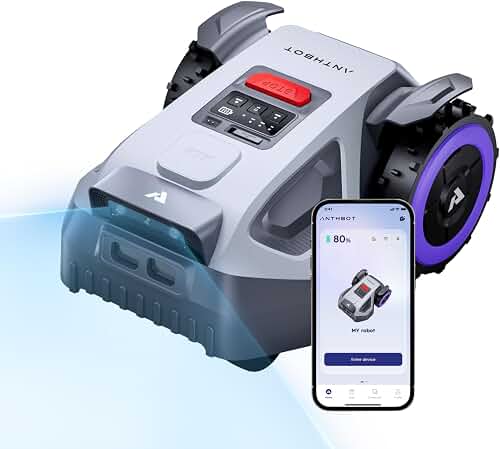
Choose the integration route before buying hardware
| Your goal | Route to check | What to verify first |
|---|---|---|
| Google Home voice control | Manufacturer-supported account linking | Exact model, required connectivity and supported commands |
| Apple Home or Siri | Native support if documented, otherwise a compatible Home Assistant integration and HomeKit Bridge | Whether the mower appears and which actions work |
| Automatic mowing schedules | The manufacturer’s app | Whether it already meets your needs without another hub |
Start with your mower’s exact model and connection type. For a compatible Husqvarna Automower, Google Home has a manufacturer-supported connection. Apple Home requires a separate compatibility check: an iPhone app is not the same as native HomeKit support. A bridge may offer a workaround, but it should not be the reason to buy a mower until you have verified the controls it exposes.
This guide is based on manufacturer and Home Assistant documentation checked on September 7, 2026. We have not installed or tested these combinations. Availability can vary by model, region and software version.
Connect a compatible Husqvarna Automower to Google Home
Husqvarna documents Google Home support for Automower models with cellular or Wi-Fi connectivity, or an Automower Connect Kit. Its current FAQ says Google Assistant and Alexa are supported, while Siri is not directly supported. Check the Automower Connect compatibility information against your exact model; do not assume Bluetooth-only access provides the same remote features.
- Set up the mower in Automower Connect and confirm it responds there.
- In Google Home, add a device or service and choose Works with Google.
- Find Husqvarna Automower and follow its account-linking flow.
- Assign the mower to the appropriate home and use the commands documented by Husqvarna.
Menu wording can change. Follow the manufacturer’s Google Home setup instructions if your app differs. If account linking succeeds but control fails, first confirm the mower is online in Automower Connect, then review the linked account and model compatibility. Repeatedly buying bridges will not resolve an unsupported model.
Using Apple Home through Home Assistant
Home Assistant provides a Husqvarna Automower integration through Husqvarna’s cloud API. This is a separate route from direct manufacturer support for Siri. Other brands need their own documented integration; one working Husqvarna setup does not establish compatibility for Segway, Worx, Mammotion or Gardena.
First confirm the mower and intended actions work inside Home Assistant. Then consult HomeKit Bridge, select only the entities you intend to expose, and pair that bridge in Apple Home using the displayed pairing code. Check the current supported-entity table and test the resulting controls. A bridged accessory may expose fewer features than the manufacturer’s app. Do not assume maps, zone editing and schedules will all appear in Apple Home.
What to compare when choosing a smart mower
Make a shortlist around the lawn first: area, slopes, narrow passages and boundary installation. Then record the exact smart-home feature you need, such as parking from Google Home, and ask whether the manufacturer documents that feature for the model sold in your region. Treat promised future firmware or a generic Matter logo as insufficient evidence of the particular connection you need.
Use our robot mower selection guide to define lawn requirements, then compare the models in our smart robot mower guide. Return to the manufacturer’s current compatibility documentation before choosing a model for voice control.
Check the result safely
Keep the manufacturer’s normal operating instructions and safety features in place. Confirm the mowing area is clear before testing remote start. Do not use a cloud command or voice response as an emergency stop, and do not bypass a PIN, boundary or safety interlock to make an automation work. If the integration is unreliable, use the mower’s supported app and controls while resolving the connection.